Setup & Configuration
Create, connect, and manage AI Agents in the Chocolate Factory.
Manage Agents
The Agents Management page provides a central view of all agents in your current organization or project context. From here you can review agent details and create new agents.
To open the Agents Management page, select Agents from the sidebar navigation.
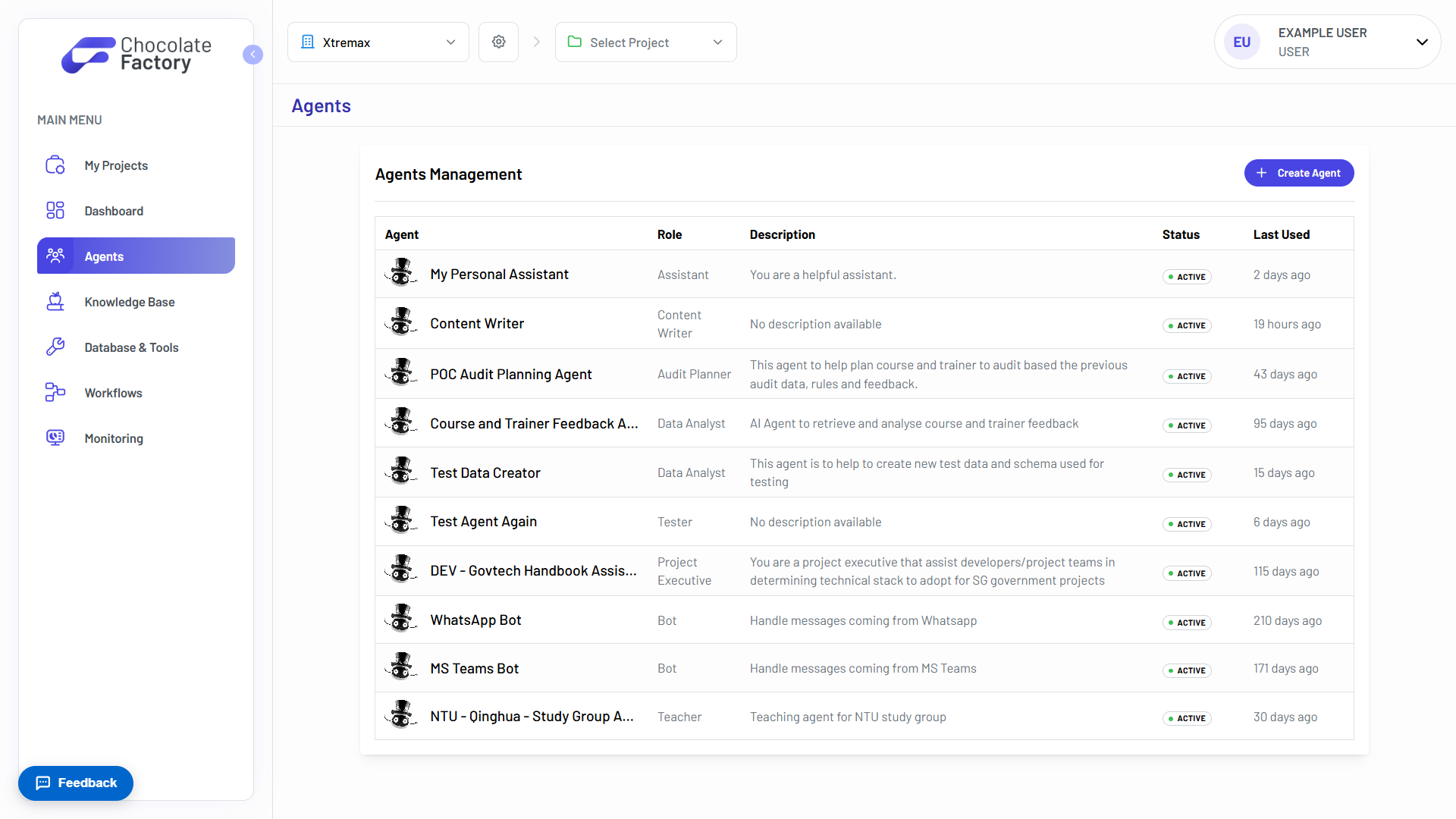
Create an Agent
- Navigate to Agents in the sidebar.
- On the Agents Management page, click Create Agent.
- In the Create New Agent dialog, fill in the required fields:
- Agent Name (required) → A unique name for the agent.
- Role → The agent’s functional role (for example, Data Analyst or Marketing Specialist).
- Description → A short summary of the agent’s purpose.
- Model (required) → The foundation model that powers the agent.
- Click Create Agent to finish.
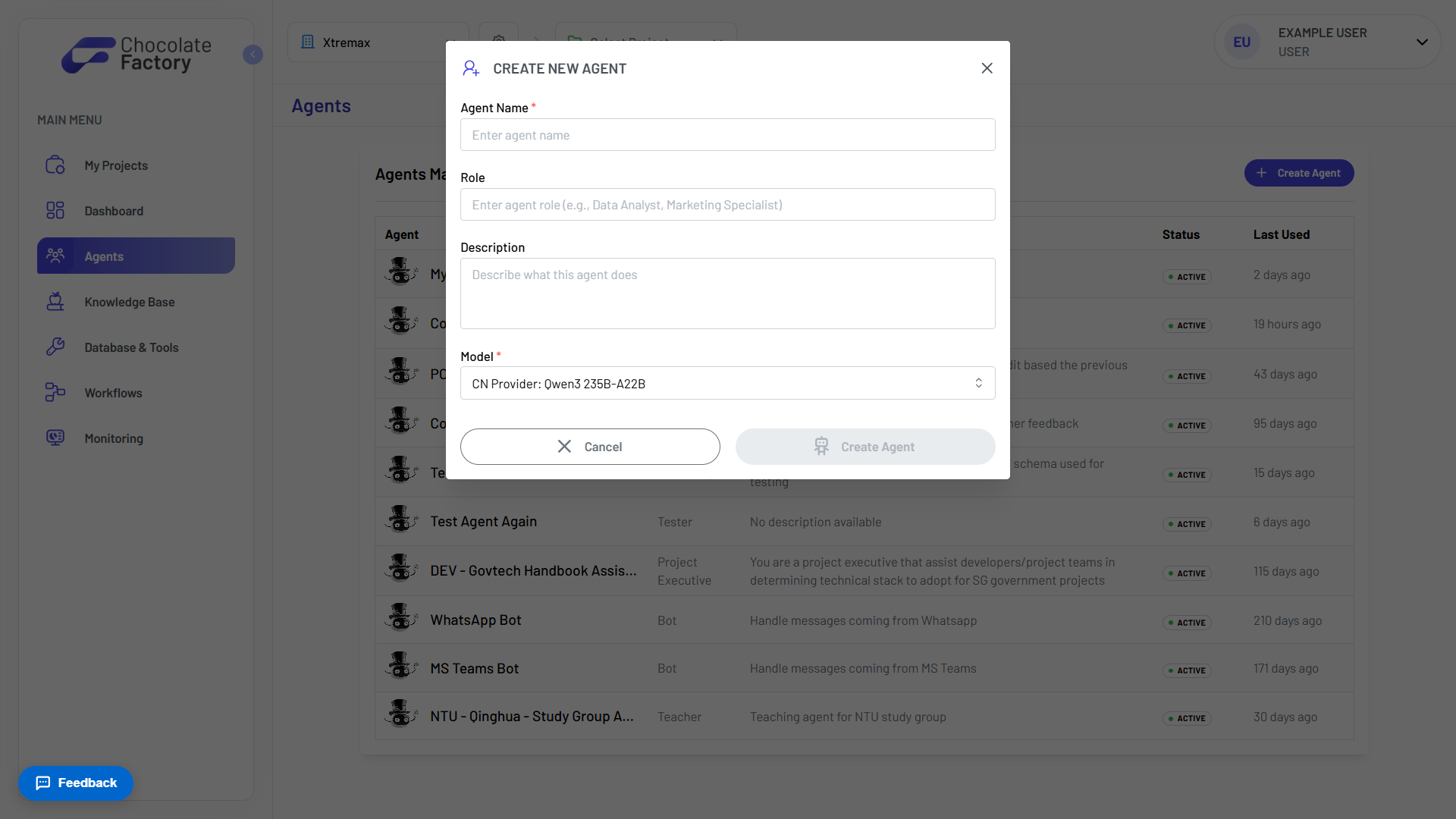
After creation, you are taken to the agent’s configuration page where you can connect tools, attach knowledge bases, and fine-tune model settings.
Agent names must be unique within the organization. You can update most settings after the agent is created.
Configure an Agent
After creating an agent, open it from the Agents Management page to access its configuration page.

Configuration is organized into tabs that let you extend the agent’s capabilities and control its behavior.
Changes to agent configuration are saved from the agent settings page. Make sure to save your changes before leaving the page.
Basic Information
This section contains agent identity, such as name, role, description, and avatar.
Configuration
System prompt and model parameters. Fine-grained control over model behavior:
| Setting | Description |
|---|---|
| AI Model | The foundation model that powers the agent. Displays supported input/output types and context window size. |
| Temperature | Controls output randomness. Lower values produce focused, deterministic responses; higher values increase creativity. |
| Max Tokens | The maximum length of the agent’s response. |
| Max Step Iterations | The reasoning loop limit - how many tool-calling steps the agent can take before stopping. |
Knowledge Base
Connect project and additional knowledge sources. See Knowledge Base for more details.
Tools
Enable built-in capabilities and connect external resources, such as MCP servers, databases, and workflows.
Built-in Tools
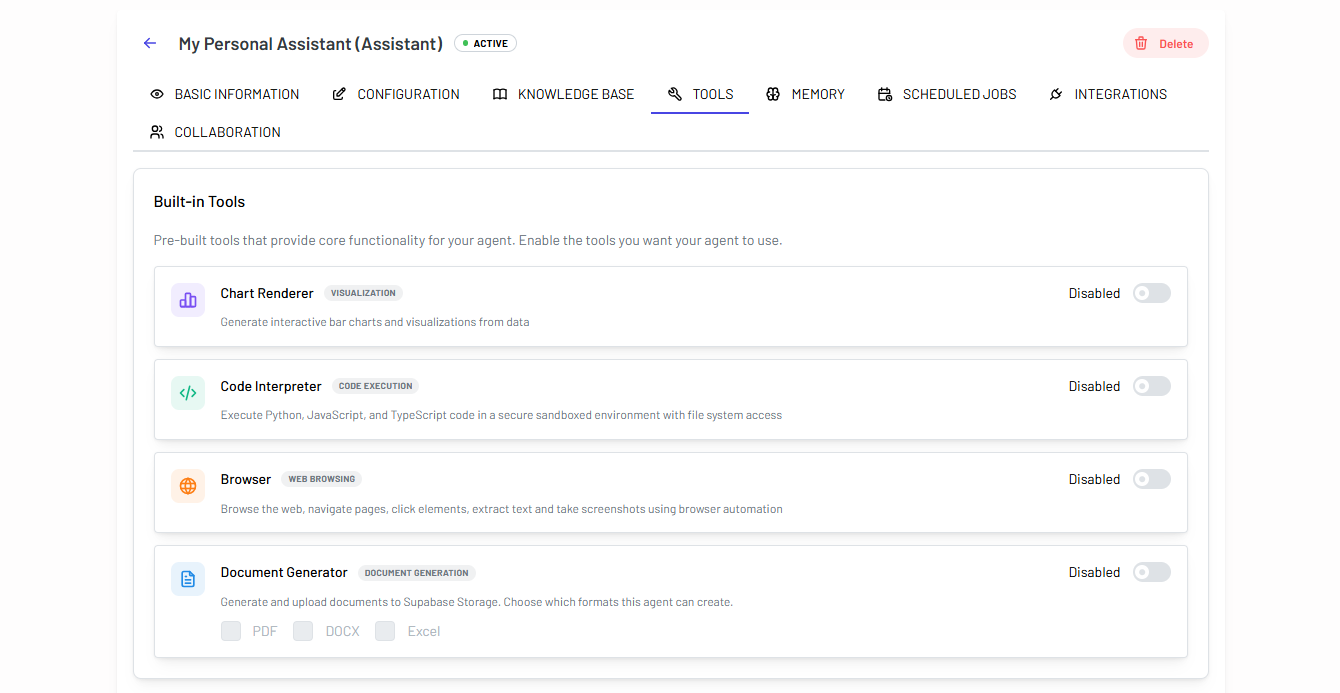
Pre-built tools that provide core functionality for your agent. Use the toggle on each card to enable or disable the tools you want your agent to use.
| Tool | Category | Description |
|---|---|---|
| Chart Renderer | Visualization | Generate interactive bar charts and visualizations from data. |
| Code Interpreter | Code Execution | Execute Python, JavaScript, and TypeScript code in a secure sandboxed environment with file system access. |
| Browser | Web Browsing | Browse the web, navigate pages, click elements, extract text, and take screenshots using browser automation. |
| Document Generator | Document Generation | Generate and upload documents to Supabase Storage. Enable the tool, then select which formats (e.g. PDF, DOCX, or Excel) the agent can create. |
External Resources
The Tools tab also includes cards for connecting external resources:
- MCP Servers → Click Add MCP Server to attach Model Context Protocol servers. After adding a server, expand Available Tools to enable or disable individual MCP tools for the agent.
- Databases → Click Add Database to connect databases so the agent can query structured data.
- Workflows → Click Add Workflow to attach shared workflows that the agent can invoke as tools.
Memory
Agent memory lets an agent retain useful information across conversations, such as user preferences, long-term facts, standing instructions, and other context that should persist beyond a single chat session. Memories can also be created automatically by the agent during conversations when it determines something is worth remembering for the future.
Use toggle to turn memory on or off for the agent. When memory is disabled, the agent does not store or recall information from past interactions.
The Memory section shows a list of memories currently stored for the agent.
- Review stored memories and their importance scores.
- Add Memory → Manually seed the agent with information it should know from the start.
- Remove a memory when it is no longer relevant.
For more settings for the memory configuration, open the Advanced section.
| Provider | Description |
|---|---|
| Legacy (Database) | Stores memories in the Chocolate Factory database. Memories are scoped to the agent and searchable by content and context. |
| AgentCore | Uses AWS Bedrock AgentCore for managed, namespace-scoped memory. Conversation memory is scoped per user - each user’s memories are kept in a separate namespace keyed by their user ID. |
Scheduled Jobs
Scheduled jobs run an agent automatically on a one-time or recurring schedule. Each execution starts a new conversation and tells the agent what to do (for example, generating a weekly report or delivering a daily summary). The agent can also create schedules during conversations when users ask for recurring tasks.
Use the toggle to turn scheduled jobs on or off for the agent. When disabled, the agent cannot run or manage scheduled jobs, and existing jobs are paused.
The Scheduled Jobs section shows a list of jobs configured for the agent.
- Review scheduled jobs and their run schedules.
- Add Scheduled Job → Define a one-time or recurring run with a task for the agent to execute.
- Enable or pause a job without deleting it.
- Remove a job when it is no longer needed.
For more settings for the schedule job configuration, open the Advanced section.
| Schedule | Description |
|---|---|
| One time | Run once at a specific date and time. |
| Recurring | Run on a repeating schedule, including daily, weekly, monthly, or a custom cron expression. |
Integrations
API endpoints, webhooks, and external service connections. Configure integrations, including messaging platforms, to connect the agent with third-party services.
See Agent Integration for more details.
Collaboration
Agent collaboration lets an agent hand off tasks to other agents during a conversation. When a collaborator is connected, the agent can delegate work at runtime (for example, asking a data analyst agent to query a database while a reporting agent handles the summary).
The Collaboration section shows the agents this agent can delegate tasks to.
- Review collaborating agents and theirF names and roles.
- Add Agent → Connect another agent as a collaborator.
- Remove a collaborator when it is no longer needed.
For more settings for the collaboration configuration, open the Advanced section.
| Agent scope | Available collaborators |
|---|---|
| Project agents | Organization-level agents and other agents in the same project. |
| Organization-level agents | Other organization-level agents only. |