Projects
Create and manage projects for individual or team-based work.
What Are Projects?
Projects provide a dedicated workspace within an organization that bring together agents, knowledge resources, and team members to build solutions within Chocolate Factory.
Projects can be used for personal or team initiatives, allowing people to share resources, coordinate activities, and manage project-specific assets in a single location.
With projects you can:
- Invite members and manage roles from project settings
- Connect agents, knowledge bases, and tools
- Nest related work as sub-projects under a parent (up to 3 levels)
Manage Projects
Once a project has been created, it becomes available through the project selector and project navigation menu in the upper-left corner of the application.
The project list and header switcher show hierarchy with indentation so you can tell parents from children. Selecting a nested project in the header shows a breadcrumb-style label (for example Parent / Child).
Authorized users can invite additional members from the project settings page. Invited users will be able to access project resources and collaborate within the same workspace.
Access permissions are inherited from ancestor projects: members of a parent project can access its sub-projects with their inherited role.
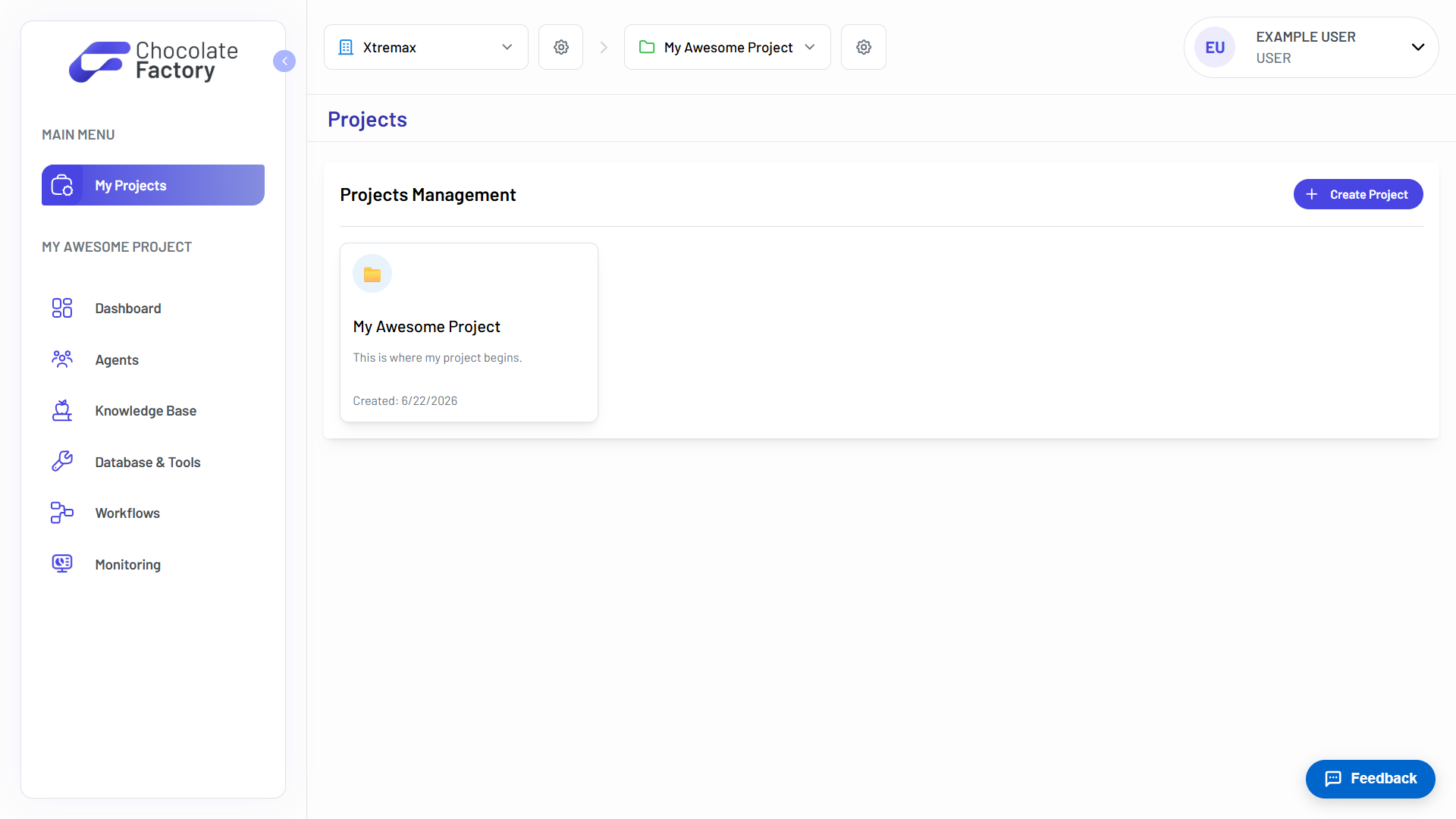
Create a Project
- Navigate to My Projects → Click Create Project.
- Provide the project’s details, including a Project Name, an optional Description, and Tags to help categorize the project.
- Optionally choose a Parent Project to nest the new project under an existing one (maximum depth: root → child → grandchild).
- Click Create Project.
You can also add a sub-project from a parent project’s settings page using Add sub-project. Agents and members can be attached later from the project settings tabs.
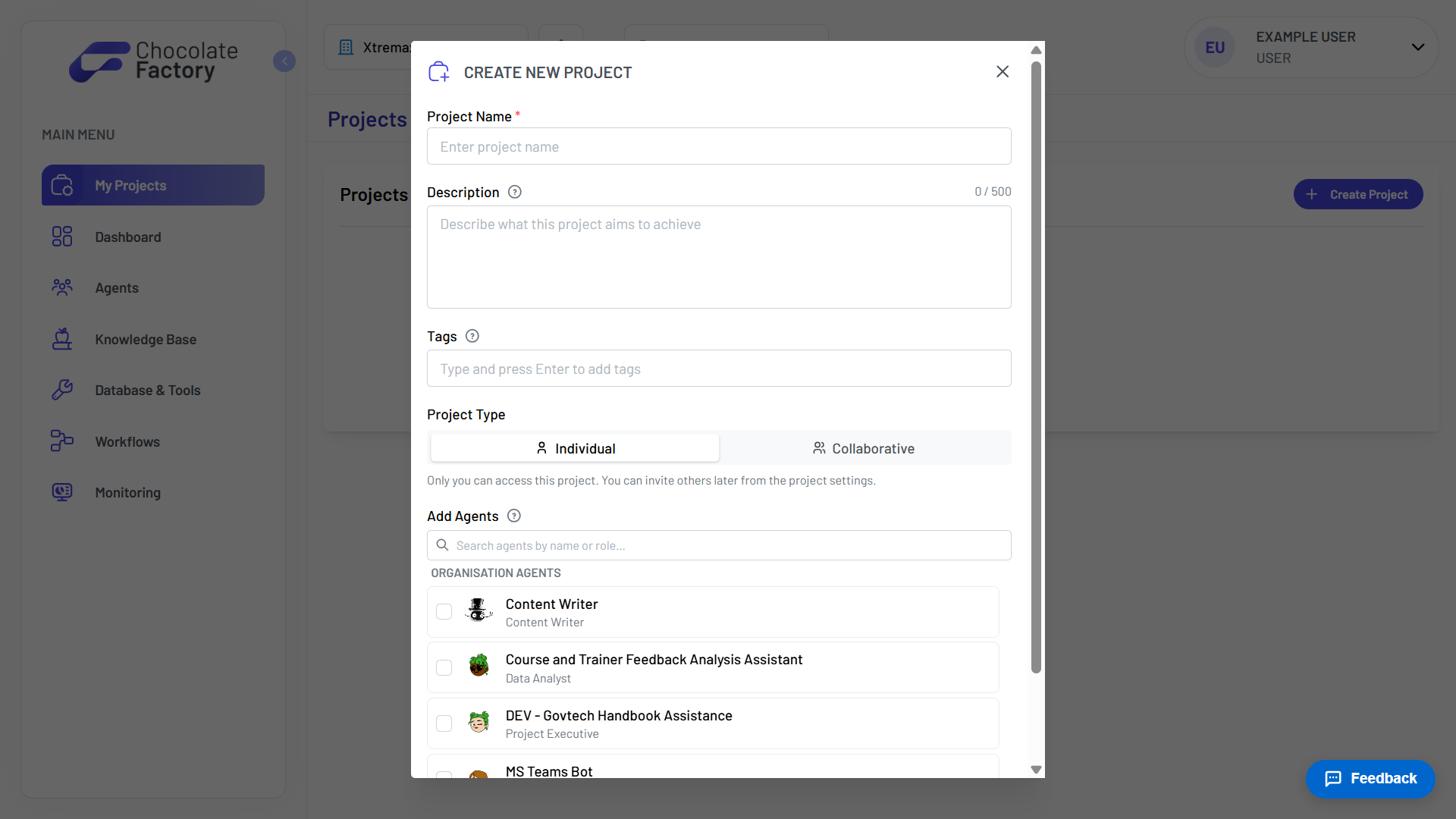
The project will be added to your organization’s list of available projects and ready for use. Slugs are generated automatically from the name with a short random suffix so duplicate names remain unique.
Selecting a Project
Use the Project Selector in the application header to switch between projects within the current organization.
The selector displays all projects you have access to (nested under their parents) and allows you to quickly move between workspaces.
Every project belongs to an organization. Deleting a parent project also deletes all of its sub-projects.