Setup & Configuration
Create, manage, and connect knowledge bases in Chocolate Factory.
For background on what knowledge bases are and when to use them, see the Overview.
Manage Knowledge Bases
In Chocolate Factory, knowledge bases are managed from the Knowledge Base page in the main menu. From here you can view all knowledge bases, check sync status, and open a knowledge base to manage its documents.
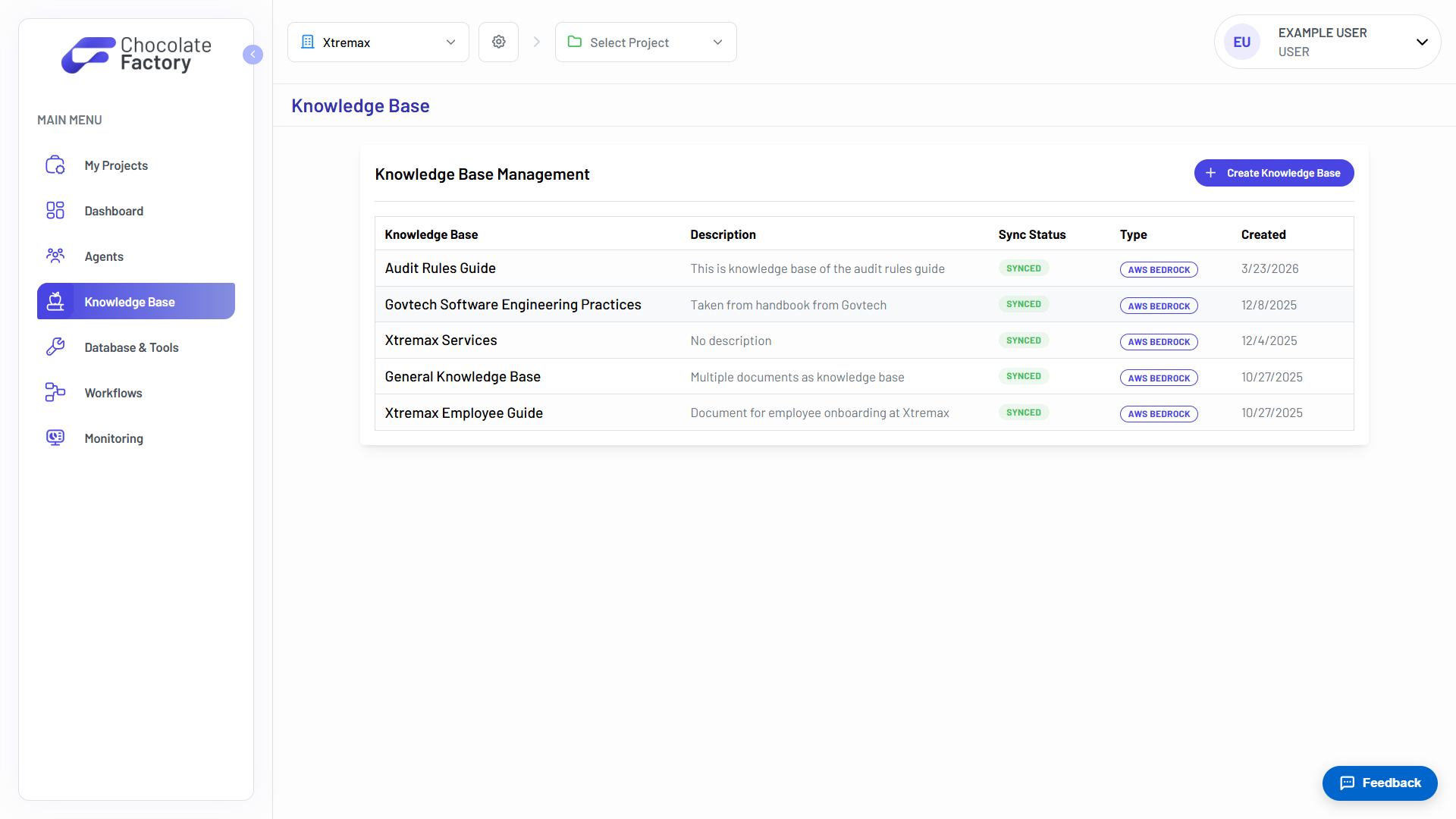
Create a Knowledge Base
- Navigate to Knowledge Base in the main menu.
- Click Create Knowledge Base.
- Fill in the details:
- Knowledge Base Name → a descriptive name shown in lists and agent configuration.
- Description & Agent Instructions → tell agents what this knowledge base contains and how to use it. Be specific about topics, date ranges, or citation requirements to improve retrieval quality.
- Click Create Knowledge Base. Chocolate Factory provisions an S3 documents bucket and an Amazon Bedrock knowledge base automatically. New Bedrock knowledge bases use Managed storage by default (Bedrock owns the vector index). Under Advanced options you can still choose Customer-managed (S3 Vectors) for the previous VECTOR path, or the built-in knowledge base service.
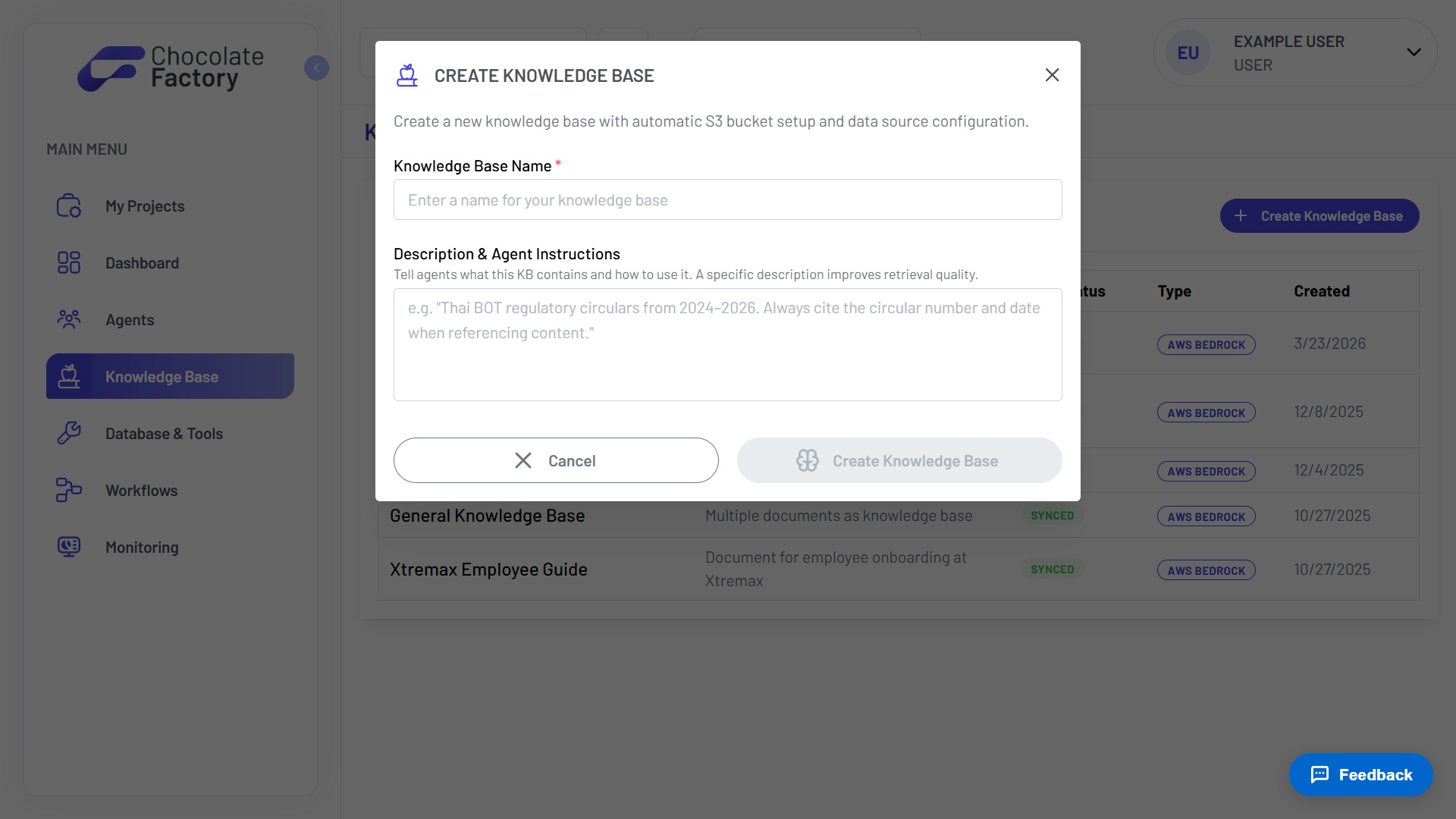
After creation, you can upload documents and run a sync.
Configure a Knowledge Base
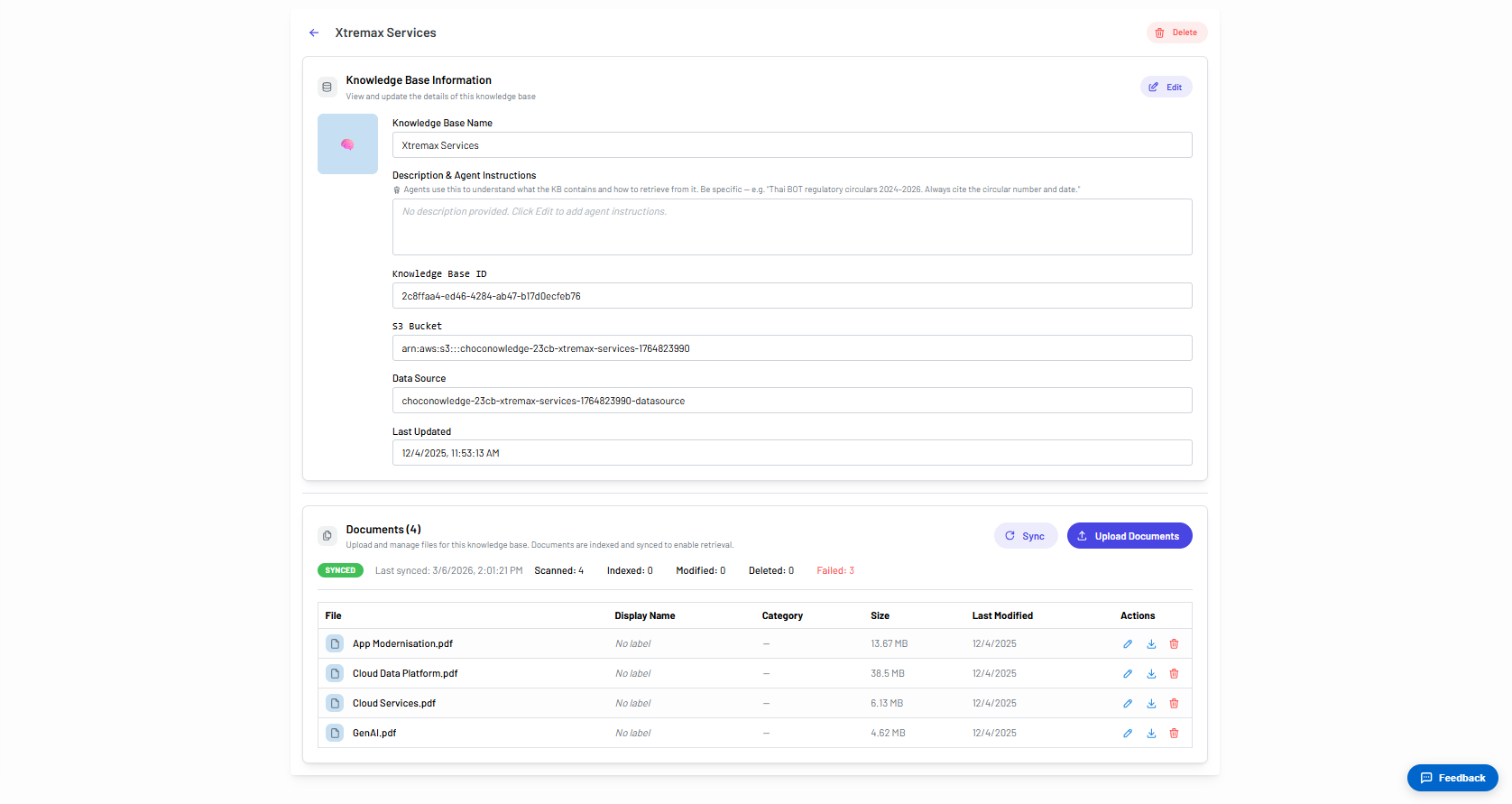
Open a knowledge base from the Knowledge Base page to view its details and manage documents. The detail page consists of two sections:
- Knowledge Base Information → view and edit the name, description, and agent instructions. Shows the knowledge base ID, S3 bucket, and data source.
- Documents → upload, label, sync, and manage files indexed by the knowledge base.
Uploading Documents
From the Documents section, click Upload Documents to add files. For each file you can set a Display Name and optional Category (for example, Policy, Procedure, Reference, or Technical) before confirming the upload.
Supported file types:
| Type | Formats |
|---|---|
| Documents | PDF, DOCX, TXT, Markdown, HTML |
| Data | CSV, JSON |
Maximum file size is 100 MB per file.
Syncing Documents
After uploading or deleting documents, click Sync to index changes. A status badge on the page shows whether indexing is in progress, complete, or needs attention. Re-sync whenever you add, update, or remove files so agents retrieve the latest content.
Managing Documents
From the documents table you can:
- Edit labels → update a document’s display name or category inline.
- Download → open the original file.
- Delete → remove a document from the knowledge base, then sync to update the index.
Connecting Knowledge Bases to Agents
A knowledge base must be connected to an agent before that agent can search it during a conversation.
- Navigate to Agent from the main menu → open the agent from Agents Management.
- In the Knowledge Base tab, click Add Knowledge Base.
- Click Add on the knowledge base you want to connect.
- Use the toggle to enable or disable each additional knowledge base for the agent.
- Save the agent configuration.
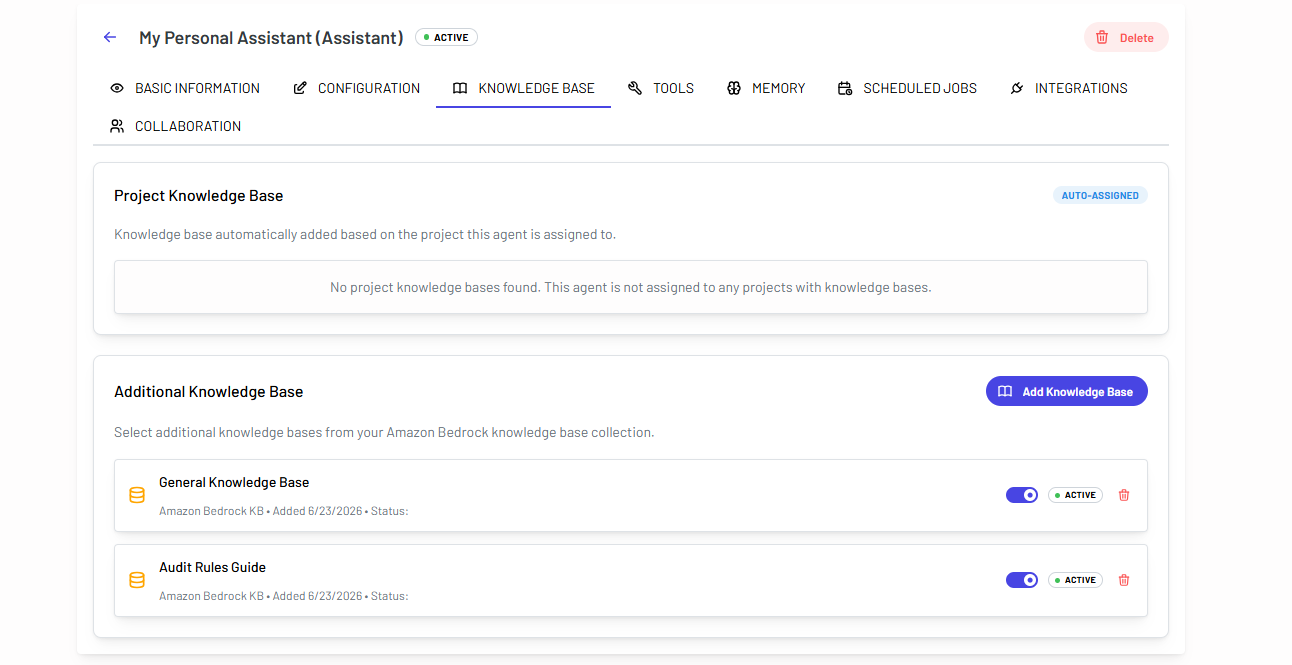
Only enabled knowledge bases are searched during a conversation. Disable a knowledge base temporarily if you want to limit what context the agent can retrieve.
See Setup & Configuration for the full agent configuration guide.