Navigation
Learn how to move around the Chocolate Factory interface.
Platform Structure
Chocolate Factory is organized in a simple hierarchy. You start at the top and drill down into more specific areas:
- Organization → Your team workspace, contains projects and members.
- Project → A workspace for building and running AI agents, containing agents, knowledge bases, tools, and workflows.
The Main Menu
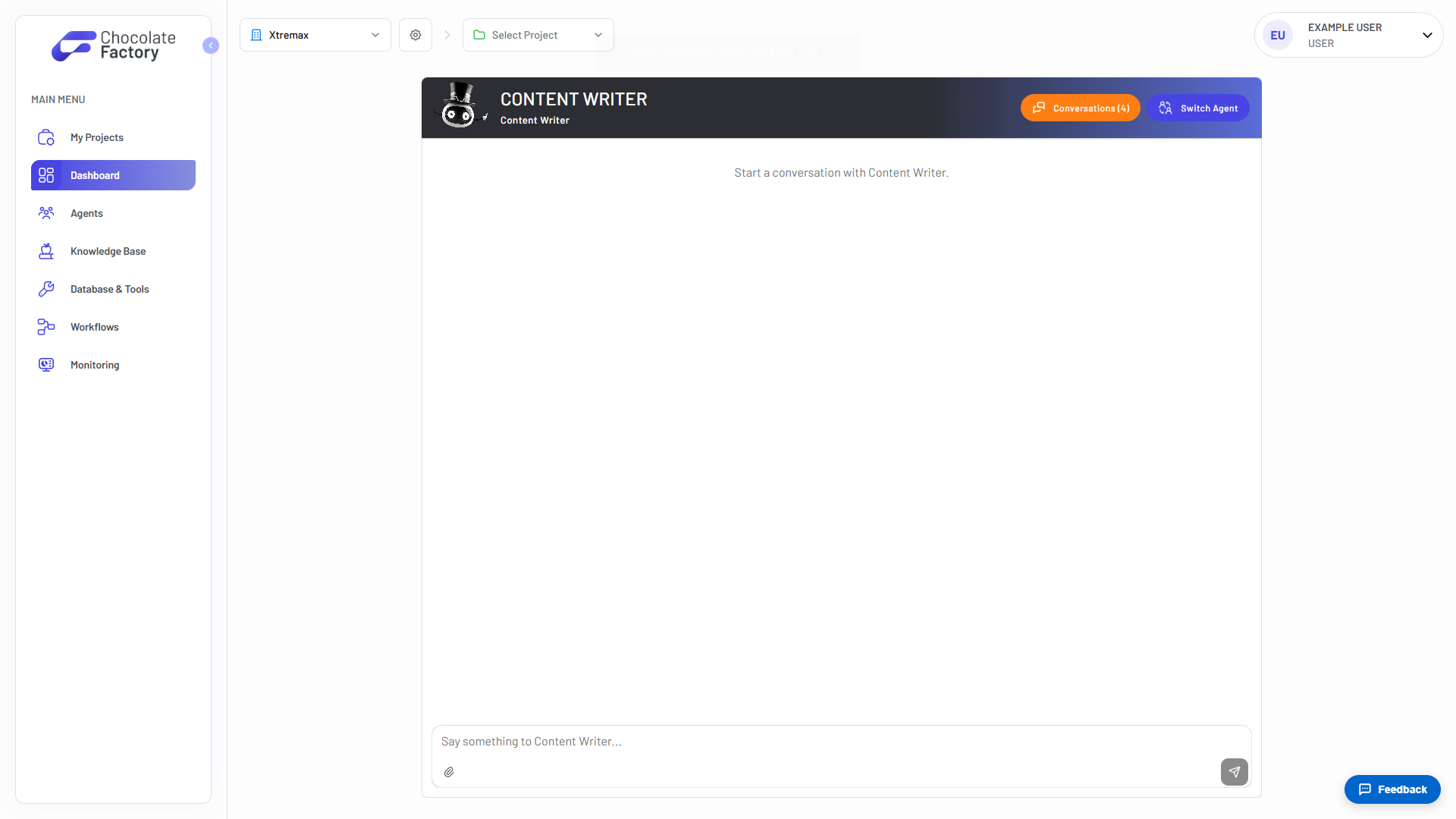
The left sidebar is labeled MAIN MENU and provides access to the core areas of the platform.
| Menu Item | Description |
|---|---|
| My Projects | View and manage all projects in your organization |
| Dashboard | Chat with your agents and run prompts |
| Agents | Create and configure AI assistants |
| Knowledge Base | Manage project-specific documents and data sources |
| Database & Tools | Connect databases and configure agent tools |
| Workflows | Build and manage automated processes |
| Monitoring | View agent activity, executions, and usage |
Use the collapse button at the edge of the sidebar to hide or show the menu and give yourself more screen space.
Header Controls
The top header lets you switch context and manage your account without leaving your current page.
Organization Switcher
Located on the left side of the header, the Organization Switcher shows the organization you are currently working in (for example, Xtremax). Use it to switch between organizations you belong to and see your role in each.
Project Selector
Next to the organization switcher, the Project Selector shows the project you are currently working in. If no project is selected, it displays Select Project. Use it to switch between projects within the current organization.
User Profile
On the right side of the header, your profile shows your initials, name, and role. Click it to access account settings and sign out.