Organizations
Create and manage organizations to collaborate with your team.
What Are Organizations?
Organizations are the top-level workspaces in Chocolate Factory. They provide a centralized environment where teams can collaborate, manage projects, organize members, and control access to shared resources and settings.
Every user must belong to at least one organization to access projects and collaborate with others.
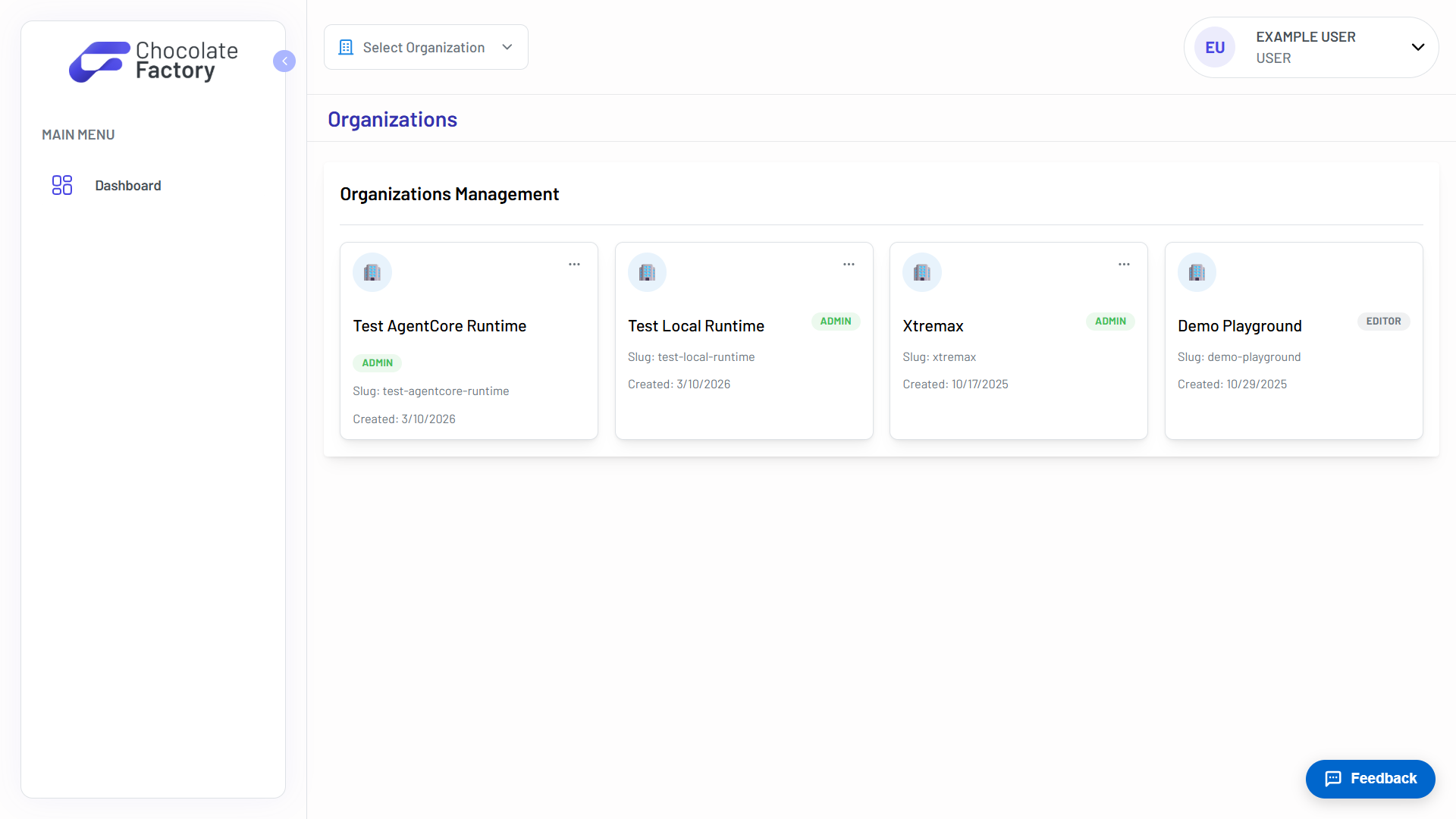
Create an Organization
- Open the Organization Selector in the upper-left corner of the application.
- Select All Organizations.
- On the Organizations Management page, click Create Organization.
- Enter an organization name and, optionally, upload an icon or avatar.
- Click Create Organization to finish setup.
Manage Members & Roles
Organization members can be managed from Organization Settings in the upper-left corner of the application. Select the Members tab to add users, update roles, and remove members from the organization.
Each organization has members with roles that determine what they can do:
| Role | Description |
|---|---|
| Owner | Has full control over the organization, including managing members, assigning roles, configuring settings, creating and managing projects, API keys, and deleting the organization. |
| Admin | Can manage organization resources, settings, projects, and members, but does not have ownership of the organization. |
| Editor | Can create, edit, and manage projects and resources they have access to, but cannot manage organization settings or membership. |
| User | Has access to assigned organization resources and projects but cannot modify organization settings or perform administrative actions. |
Keeping membership up to date helps ensure the right people have access to the appropriate resources.
Switching Between Organizations
If you belong to multiple organizations, you can switch between them using the Organization Selector located in the application header.
The selector allows you to:
- All organizations you belong to
- Your role in each organization
- A quick shortcut to create a new organization
Switching organizations updates the workspace context, allowing you to access the projects, members, and resources associated with the selected organization.
When you create an organization, you automatically become the Owner with full administrative access.