Setup & Configuration
Create, connect, and manage MCP servers in Chocolate Factory.
For background on what MCP servers are and when to use them, see the Overview.
Pre-built Templates vs. Custom MCP
When creating an MCP server, you can start from a template or configure a custom server:
| Option | Description |
|---|---|
| Pre-built templates | Ready-to-use connectors for popular services such as Microsoft 365, Atlassian, Notion, Slack, HubSpot, ServiceNow, Tavily, and more. Templates pre-fill the server URL and authentication type. |
| Custom MCP | Register any MCP-compatible server by providing your own name and URL. Use this for proprietary services or third-party MCP servers not covered by a template. |
Some templates point to official servers or self-hosted MCP servers by Chocolate Factory.
Managing MCP Server
In Chocolate Factory, MCP servers are managed from the Database & Tools page in the MCP Servers tab.
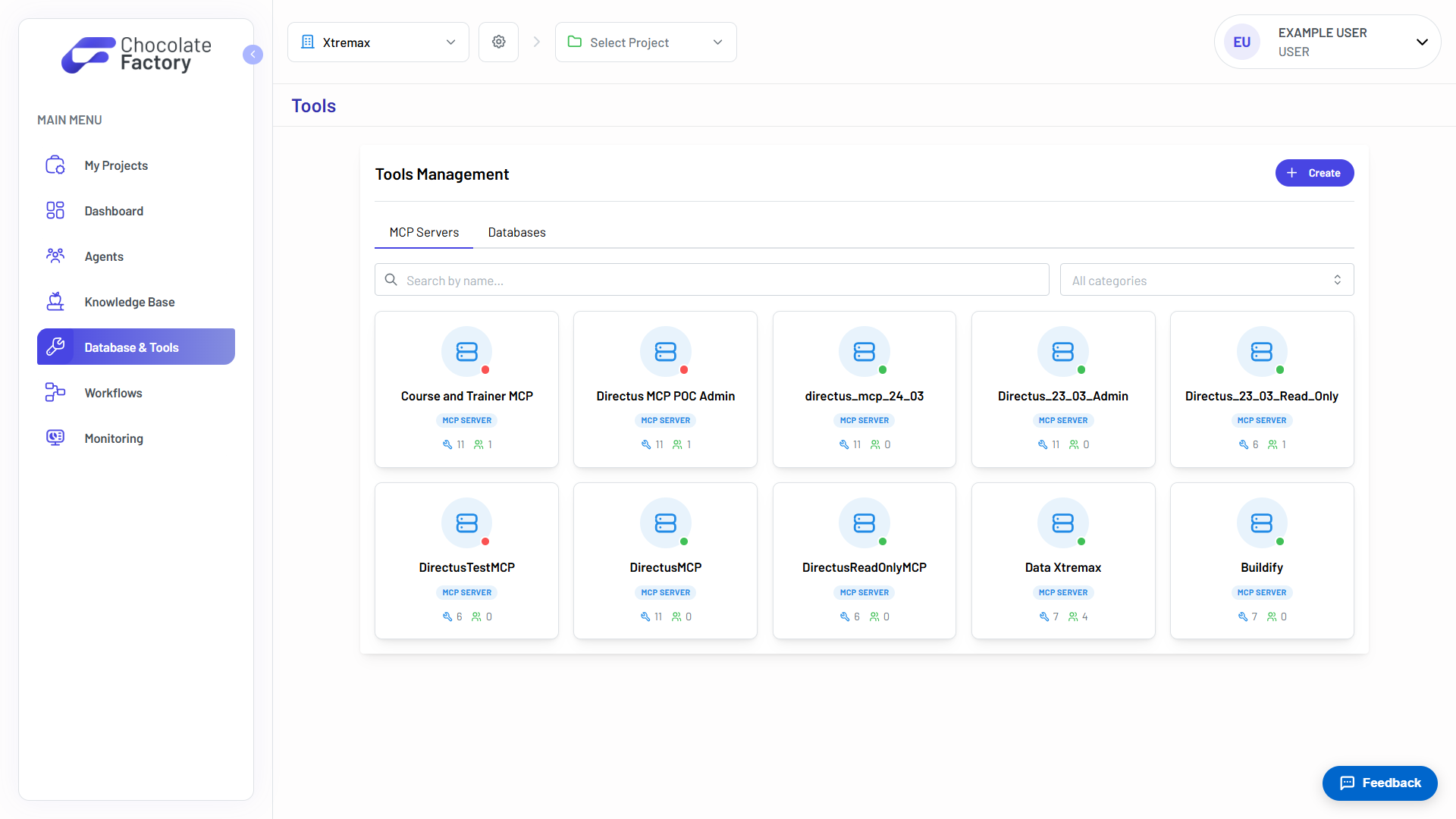
Create an MCP Server
To register a new MCP server:
- Navigate to Tools and open the MCP Servers tab.
- Click Add MCP Server.
- Choose a template or select Custom to enter your own URL.
- Fill in the server details:
- Server Name → a descriptive name shown in the Tools list and agent configuration.
- Icon and Tags → optional metadata to help organize servers.
- Server URL → the MCP endpoint (pre-filled for templates).
- Authentication → configure credentials based on the server’s auth type. See Authentication in the overview for supported auth types.
- Click Create. Chocolate Factory runs a health check, creates the server, and automatically syncs its available tools.
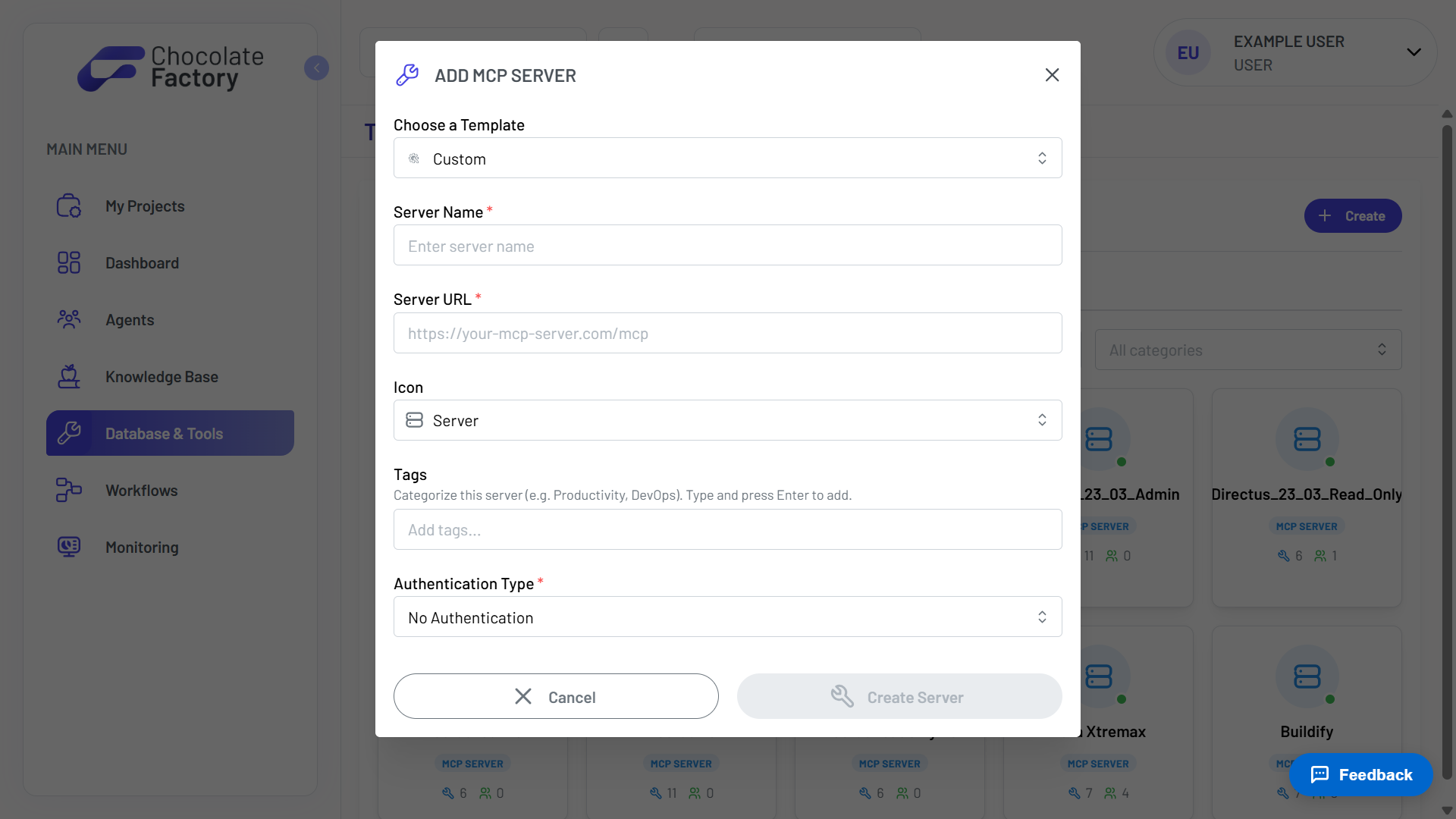
MCP servers can be created at the organization level (no project selected in the header) or scoped to a project (with a project active). Organization-level servers are available to all projects within the organization.
Configure MCP Server
To update a server’s configuration:
- Open the server from Database & Tools page → MCP Servers tab.
- On the Basic Information tab, click Edit.
- Update the fields you need, then click Save Changes.
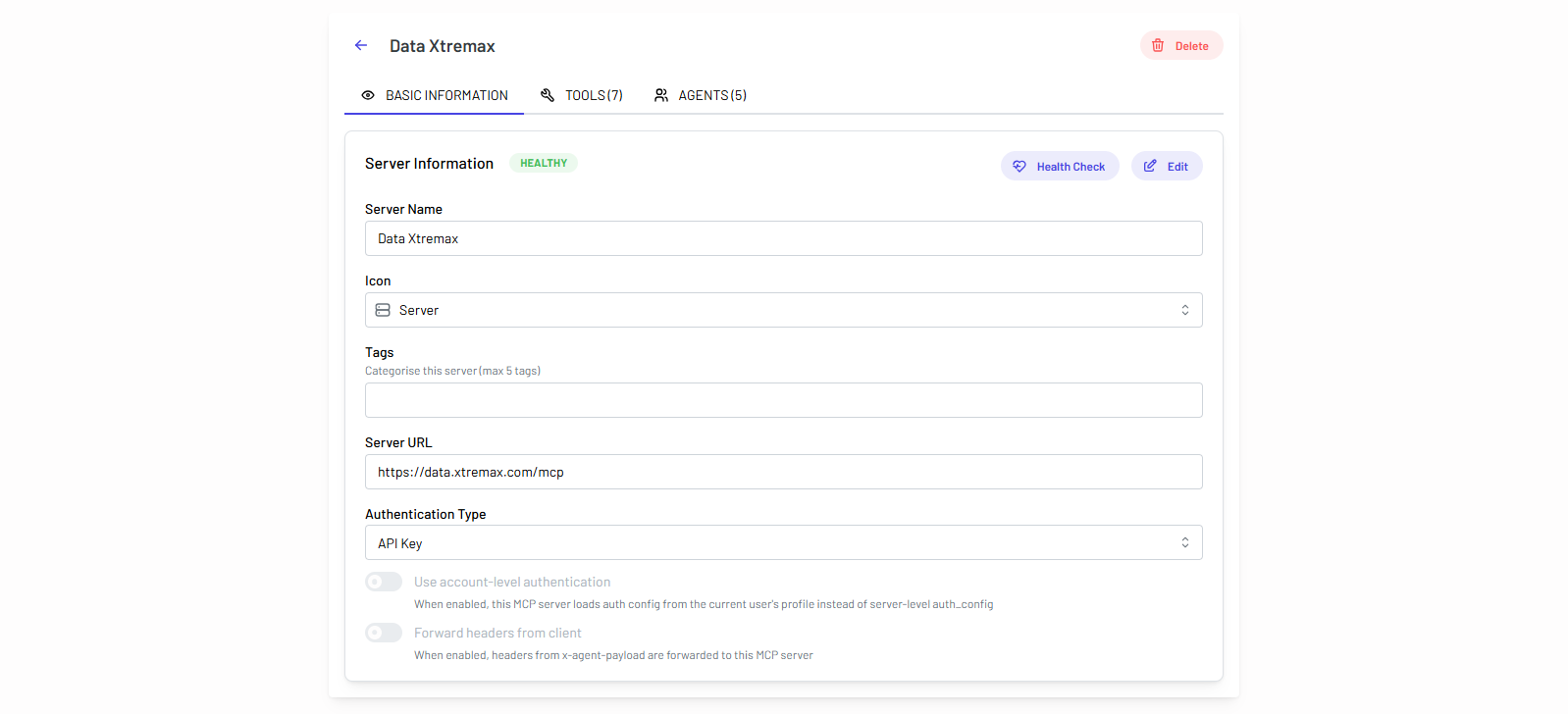
Health Check and Tool Sync
- Health Check → Verify the server is reachable by connecting to the server. Status is shown as healthy, unreachable, or unknown.
- Sync Tools → Chocolate Factory refreshes the tool list and makes new tools available to connected agents.
Connecting MCP Servers to Agents
An MCP server must be attached to an agent before that agent can use its tools:
- Navigate to Agent from the main menu → open the agent from Agents Management.
- In the Tools tab, then scroll to the MCP Servers section and click Add MCP Server.
- Click Add on the MCP server you want to connect.
- Expand Available Tools on the connected server and use the toggles to enable or disable individual tools for the agent.
- Save the agent configuration.
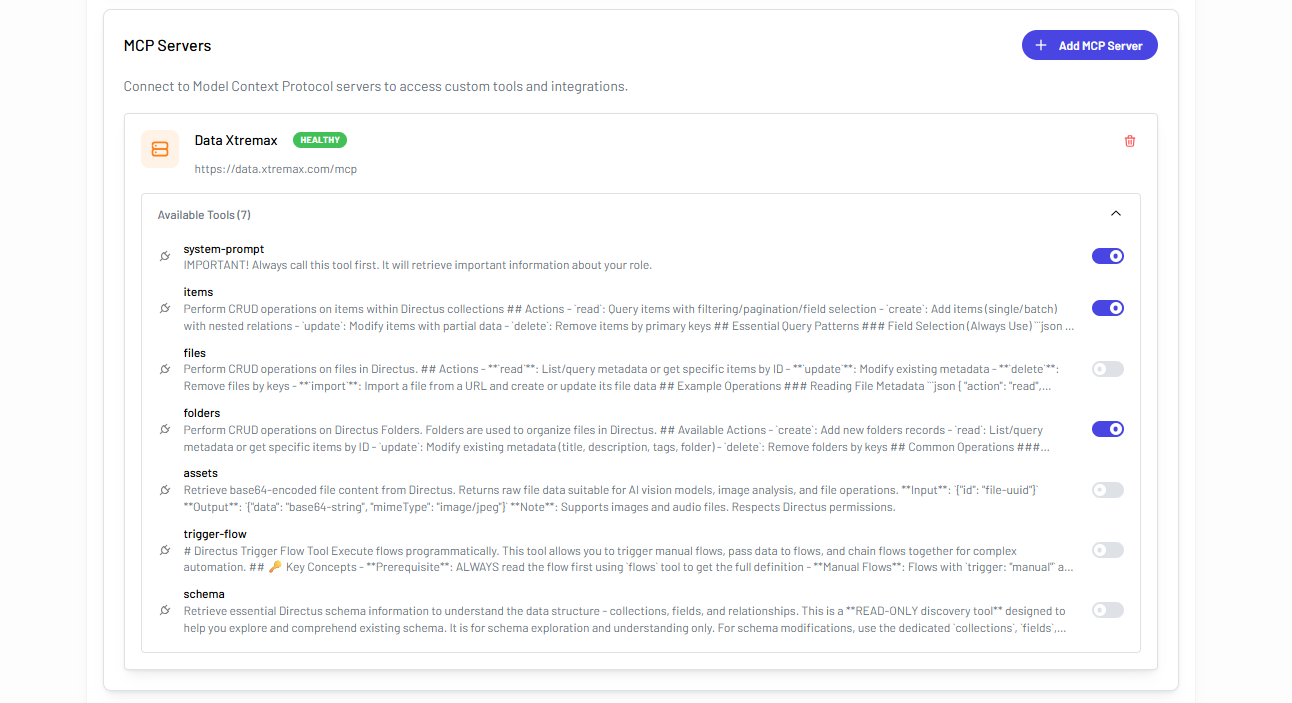
Only enabled tools are available to the agent during a conversation. Use per-tool toggles to limit which capabilities an agent can access, For example, allowing search but not write operations from the same MCP server.
When the agent runs, it receives context about each connected MCP server, including the server name, URL, and tool suffix, so it can choose the right tools during a conversation.
See Setup & Configuration for the full agent configuration guide.